
Most guides on this topic give you a list of methods and stop there. What they skip is the harder part: understanding why different tools give different numbers, how to read the data correctly (contextual vs navigational, sampled vs comprehensive), and how to turn a list of linking pages into an actual action plan.
This guide covers all three methods for finding internal links to a specific page, explains when and why the results differ, and walks you through what to do with the data once you have it.
Definition
Inlinks (internal backlinks) are the internal links pointing to a specific page from other pages on the same domain. Finding inlinks to a page tells you how much link equity it is receiving, which pages are passing that equity, and whether the page is reachable through internal crawling or effectively orphaned.
What "Find Internal Links to a Page" Actually Means
Incoming vs Outgoing Internal Links
Every page on a site has both inlinks (other pages linking to it) and outlinks (links it sends to other pages). When you want to find internal links to a page, you are looking for its inlinks: which pages contain a hyperlink with your target URL as the destination.
This is the more useful analysis for SEO. Outlinks are easy to audit by viewing the page source. Inlinks require either a tool that tracks the entire site's link graph, or Google's data via Search Console.
When You Need This Report
Four situations make inlink analysis particularly valuable:
Underlinked pages: If a page is targeting a valuable keyword but not ranking, insufficient inlinks may be why. Finding the current inlinks shows you both how few there are and which pages could donate more equity.
Site migrations: After changing URLs, old links may still point to the previous address via redirects. Finding inlinks to a redirecting URL lets you update them to point directly to the new canonical, removing unnecessary hops.
Orphan pages: A page with zero inlinks in a crawler's report is effectively isolated. Finding (or confirming the absence of) inlinks is the first step to fixing an orphan.
Topical clusters: When building or auditing a content cluster, you want to confirm that cluster pages actually link to each other and to the pillar. An inlink report for the pillar page shows which cluster pages have linked to it and which have not.
Method 1: Google Search Console (Fastest, but Sampled)
Step-by-Step: Links Report to Top Internally Linked Pages
In Google Search Console, go to the left sidebar and click "Links". The Links report shows two main sections: External Links and Internal Links. Under Internal Links, you will see "Top internally linked pages," which lists pages ordered by how many internal links they receive.
Click "More" under Top internally linked pages to see the full list. Click on any URL in the list to see which specific pages link to it internally. The resulting view shows all linking pages that GSC has identified in its sample.
Step-by-Step: Internal Links Report for a Specific Page
Alternatively, use GSC's URL Inspection tool. Enter the specific URL you want to analyse. The Coverage section will show whether the page is indexed and how Googlebot most recently accessed it. However, URL Inspection does not directly show inlinks. For that, use the Links section's "Top linked pages" drill-down method described above.
How to Export
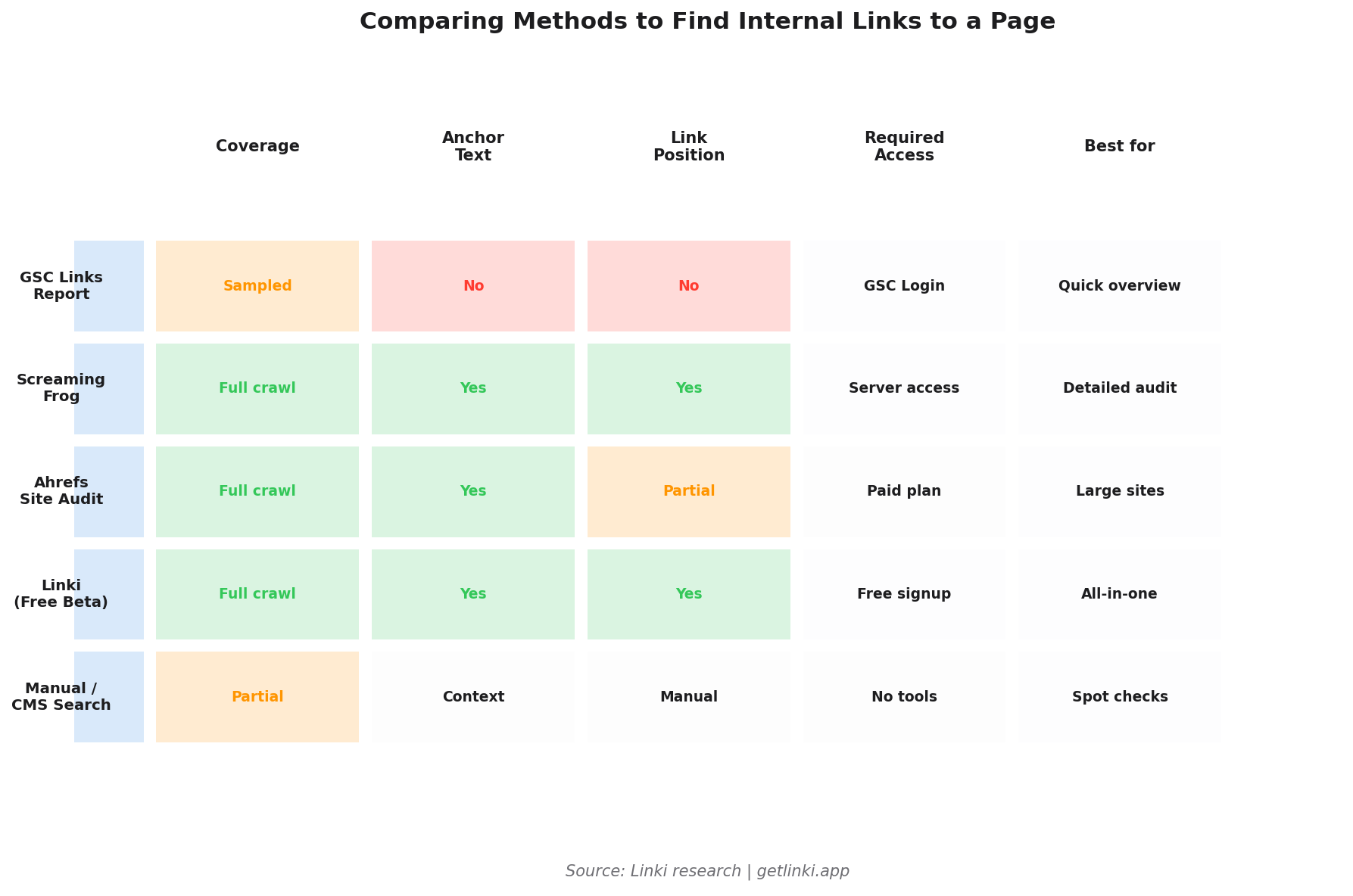
In the Links report, click the download icon at the top right to export the internal links data as CSV. The export includes the target URL and the linking URLs. It does not include anchor text, link position, or follow/nofollow status.
Limitations to Understand
Google Search Console's internal links data is sampled, not comprehensive. The table caps at 1,000 rows.[1] Two important distortions affect accuracy:
Canonical grouping: GSC combines data for URLs it treats as duplicates. If your site has multiple URL variants for the same content (with/without trailing slash, with parameters), GSC may group them. The inlink count reflects the combined group, not a single URL.
Sampling: For large sites, GSC does not report all internal links, only the ones it has sampled in recent crawls. A crawler will typically find significantly more inlinks than GSC reports for the same URL, particularly for pages with many linking sources or where the linking pages are crawled infrequently.
1,000
row cap on GSC's internal links table (sampled, not comprehensive)
Source: Google Search Console Help
"Internal linking is super critical for SEO. It's one of the biggest things you can do on a website to guide Google and visitors to the pages you think are important."
John Mueller, Senior Search Analyst, Google
Method 2: Crawl Your Site for Complete Inlinks and Anchor Text
Step-by-Step: Crawl Setup
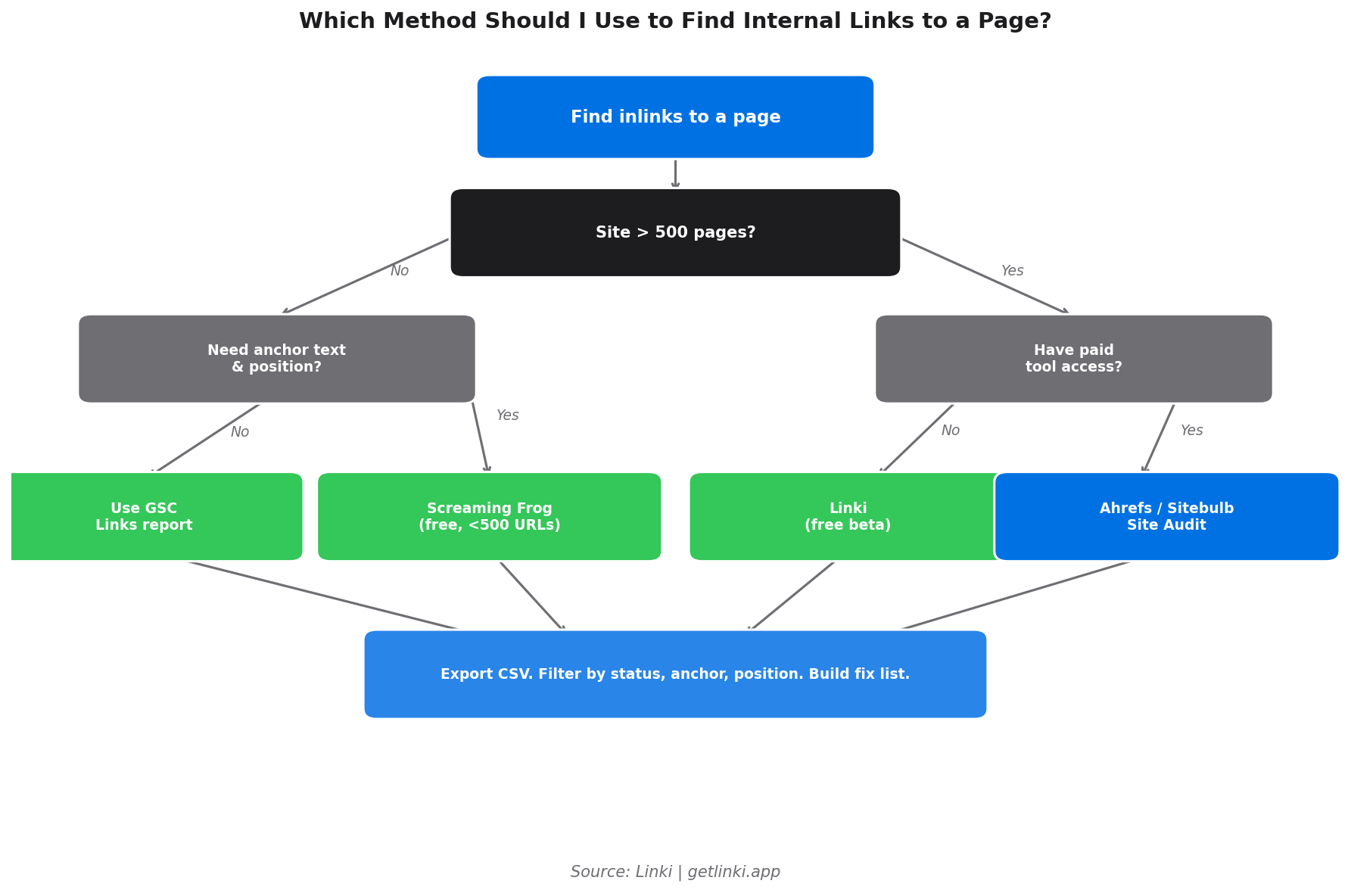
Open Screaming Frog (or your crawler of choice). Enter the domain in the URL field and click Start. For sites above 500 pages, the paid version is required. Configure the crawl to stay within the root domain, respect robots.txt, and exclude any known URL parameters that create duplicate content.
Step-by-Step: Locate the URL and Access the Inlinks Tab
Once the crawl completes, type or paste the target URL into the search bar at the top of the URL list. Select that URL to highlight it. In the bottom pane, click the "Inlinks" tab. This shows every page on the site that contains a link to your target URL, along with the anchor text, link position (navigation, content, footer, etc.), follow status, and the status code of the linking page.
Right-click on the Inlinks pane and select "Export" to export this data as CSV.
What to Check in the Export
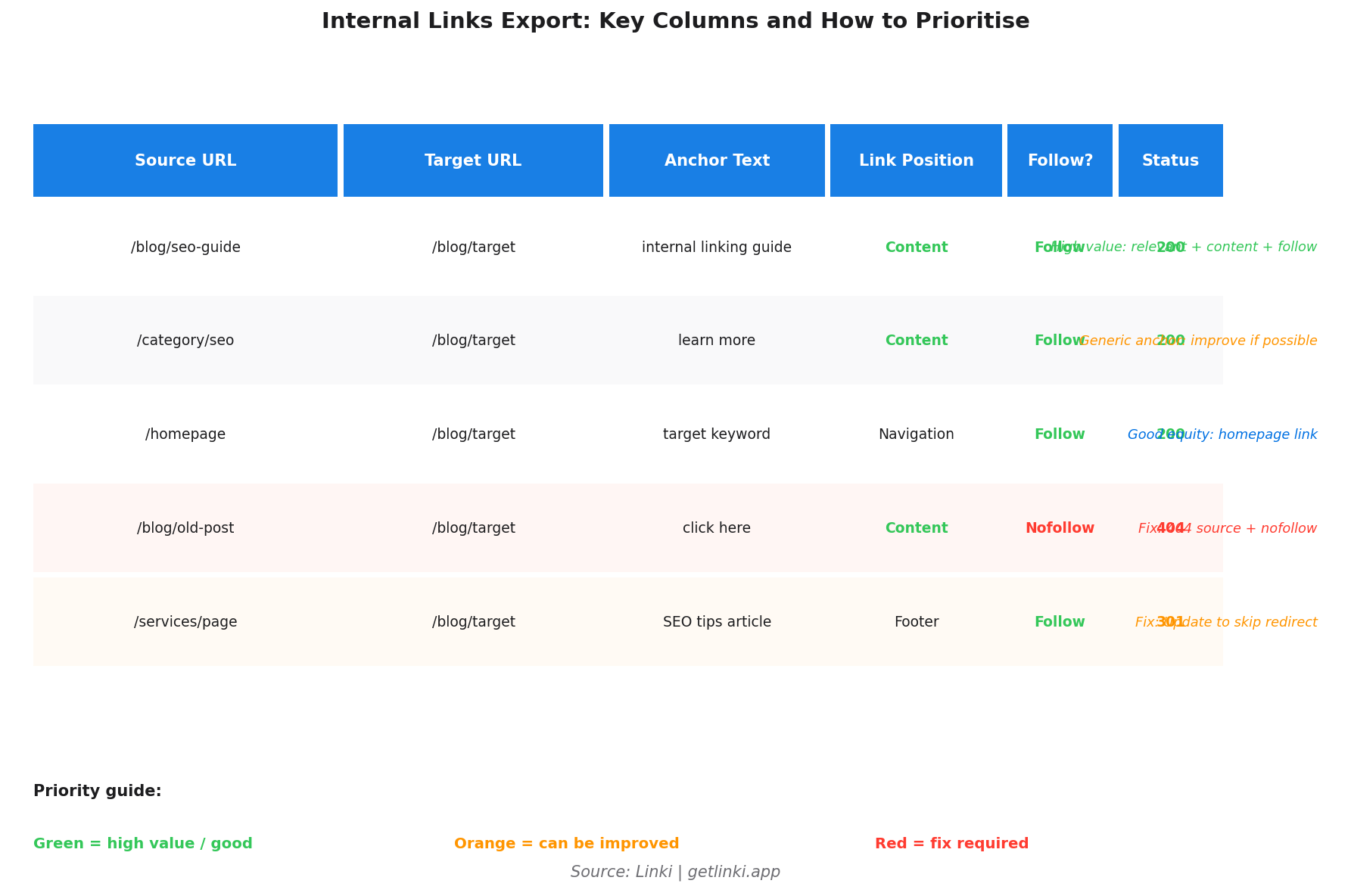
The columns that matter most:
- Source URL: The page containing the link. Check its own authority and relevance.
- Anchor text: Is it descriptive or generic? Exact-match anchors are particularly valuable for target keywords.
- Link position: Navigation and footer links count, but contextual body links typically carry more weight. Tim Soulo at Ahrefs points to Google's "Reasonable Surfer" concept, which suggests prominent, in-content links likely pass more equity than peripheral ones.[2]
- Status code: Any linking page returning a non-200 status code is a problem. Fix those first.
- Follow/nofollow: Nofollow internal links do not pass equity. If key linking pages are using nofollow, that is worth investigating.
5x
more organic traffic for pages with at least one exact-match internal anchor vs pages without one
Source: Zyppy SEO Study (23M links)
Method 3: Find Links Without SEO Tools
Browser "View Page Source" Check
For a quick check on a small number of pages: open each potential source page in a browser, right-click and select "View Page Source" (or press Ctrl+U / Cmd+U), then press Ctrl+F and search for the target URL or a distinctive part of it. Every occurrence in the source is an internal link to that URL.
This works for spot-checking specific pages but does not scale. It does not show status codes, anchor text context, or link position in a structured way.
CMS Search
Most CMS platforms allow you to search post content. In WordPress, go to Posts > All Posts and search for the target URL in the search box. Any post containing that URL as text will appear in results. This method catches links in post content but misses links in templates, navigation, headers, footers, and widgets. It is best for confirming whether a specific piece of content links to a target, not for comprehensive inlink discovery.
Why Tools Disagree (and How to Reconcile the Data)
Canonicals, Redirects, Parameters, and Blocked Pages
GSC and crawlers often report different inlink counts for the same URL because they handle technical issues differently. GSC may consolidate canonical variants; a crawler reports them separately. A crawler sees links to redirected URLs as links to that URL; GSC may or may not follow the redirect and attribute the link to the canonical.
Pages blocked by robots.txt will not appear as inlink sources in a crawler but may appear in GSC if Googlebot has visited them despite the block. Non-indexed pages may link to your target but will not appear in GSC data since GSC focuses on what Google actually processes for indexing.
Contextual vs Navigational Links
Neither GSC nor most basic crawl reports distinguish between a contextual link in the body of an article and a navigation link that appears on every page. For understanding how much equity a page is truly receiving from meaningful content-level links, you need a crawler that reports link position (Screaming Frog's "Type" column) and you need to filter for content/body links specifically.
Turn the List into an Action Plan
Most guides stop at "here are your inlinks." This section covers what to actually do with the data.
Prioritise Target Pages
Not all underlinked pages need the same attention. Prioritise by commercial value: money pages and pages targeting head keywords with search volume above 1,000/month should be addressed first. Then secondary keywords, then informational content. Declining pages (pages that previously ranked and are losing positions) are high-priority candidates since they may have lost rankings partly due to relative inlink decline.
Pick the Best Donor Pages
The best donor pages are those that are: (1) topically relevant to the target, (2) close to the top of the site architecture (low crawl depth themselves), and (3) already receiving meaningful internal link equity. A relevant page at depth 2 is far more valuable as a donor than a relevant page at depth 5.
Anchor Text: Balance Relevance and Variation
When adding or updating internal links, choose anchor text that is descriptive of the target page's topic. Research from Zyppy on 23 million internal links confirms that pages with at least one exact-match internal anchor receive five times more organic traffic than equivalent pages without one.[3] However, over-repetition of the same anchor text looks unnatural and risks over-optimisation. Use a combination of exact-match, partial-match, and natural language anchors.
Reduce Click Depth for Priority URLs
If the inlink analysis shows that a page is only linked from pages at depth 4+, the page is effectively buried. The most impactful fix is to get a link from a page at depth 1 or 2: the homepage, a top-level category, or a high-traffic hub page. Even a single high-depth inlink from a relevant deep page is far less valuable than one link from a page close to the homepage.
Re-measure and Monitor
After adding new inlinks, re-crawl the site in 4-6 weeks. Check whether the target page's inlink count has increased (it should have). Monitor GSC for changes in clicks and impressions for that URL over the following 8-12 weeks. Zyppy's study found that URLs with 40-44 internal links averaged approximately four times more Google Search clicks than URLs with 0-4 links.[3]
How Linki Helps
Linki is designed to consolidate the manual work described in this article. Instead of running a crawl, exporting a CSV, cross-referencing GSC data, and manually filtering by link position and anchor text, Linki surfaces the complete inlink picture for any URL in one report.
Key features relevant to finding internal links to a page:
- Complete inlink list for any URL, including anchor text and link position context.
- Underlinked page detection: pages that are indexed but receiving fewer internal links than recommended based on their keyword targeting.
- Orphan page identification with suggested donor pages (most relevant pages likely to provide a contextual link).
- Crawl depth visualisation: see exactly how deep each URL sits in the architecture and which inlinks are at which depth.
For the broader internal link audit workflow, see our guide on auditing internal links at scale. For understanding which metrics to track from your inlink reports, see internal linking metrics that actually matter. For a comparison of tools, see best internal link checker tools compared.
Frequently Asked Questions
How do I find which pages link to a specific page in Google Search Console?
In GSC, go to Links (left sidebar) then under Internal Links click "More." Find your target URL in the list (or search for it) and click it. GSC shows all pages in its sample that contain an internal link to that URL. Export the data using the download icon. Note that results are sampled and capped at 1,000 rows, so a full site crawl will typically surface more inlinks.
Why doesn't Google Search Console show all internal links, and why do its numbers differ from a crawler?
GSC uses sampled data rather than a comprehensive crawl report. It also groups canonical URL variants together, which can make a single URL's inlinks appear to come from fewer sources than a crawler would show. Additionally, GSC may not report links from pages it has blocked via robots.txt or pages it deems low-quality. A dedicated crawler audits every page it can reach and reports all links found, giving a more complete (though not perfectly Google-aligned) picture.
How do I find internal links to a page using Screaming Frog and export them?
Run a full site crawl in Screaming Frog. Once complete, search for your target URL in the URL list and select it. Click the "Inlinks" tab in the bottom pane. This shows every discovered internal link to that URL with source URL, anchor text, link position, follow status, and status code. Right-click the Inlinks pane and choose "Export" to download as CSV.
What's the best way to find internal links to a page on a large site without checking manually?
Use a cloud-based crawler. Ahrefs Site Audit, Linki, or Sitebulb all crawl large sites without the local machine constraints of Screaming Frog. In Ahrefs, go to Site Audit, select your project, click "Internal pages," find the target URL, and click into its internal links report. For prioritised inlink analysis combined with contextual data, Linki's free beta is currently the most accessible option for sites of any size.
What are the most important things to check in an internal links export?
Focus on: (1) Status code of the linking page (2xx = good, 3xx/4xx = investigate), (2) Link position (content/body links > navigation/footer links), (3) Anchor text (is it descriptive or generic?), (4) Follow/nofollow status (nofollow links do not pass equity), and (5) Crawl depth of the linking page (shallower is more valuable). Prioritise adding new inlinks from high-authority pages at low crawl depth that are topically relevant to the target.
Sources
- Google Search Console Help, Links report documentation
- Ahrefs, How to prioritise internal linking
- Zyppy, Zyppy SEO study (23M internal links)
- Techmagnate, Using Ahrefs to find internal linking opportunities (John Mueller quote)
- Moz, Internal links SEO guide
- LinkStorm, How to find internal links to a page
- SEOptimer, How to find all internal links to a page
- Semrush, Internal links guide
- Ahrefs, How to use Ahrefs