
One retail brand added internal links to existing product pages and gained 150,000 additional organic visits per year, with measurable results appearing in just three weeks.[1] They did not publish new content. They did not build backlinks. They simply connected pages that were already live on their site.
That is the power of retroactive internal linking: going back to content you have already published and adding strategic links between pages. Most SEO guides treat this as a footnote. This article is the full playbook.
If you have a blog, resource library, or product catalogue with more than a dozen pages, there are almost certainly pages sitting in your archive that are underlinked, buried too deep, or completely orphaned from the rest of your site. Each of those pages is leaking potential. Adding internal links to existing content is one of the fastest, highest-ROI tasks in SEO, and you can start today with nothing more than Google Search Console.
Here is what makes this even more compelling: Cyrus Shepard's research found that adding internal links benefits both the target page and the source page, with traffic rising approximately 20% on each.[2] You are not redistributing a fixed pool of traffic. You are growing it.
Below is the five-step workflow for adding internal links to your existing content, from audit to execution to measurement.
Definition
Retroactive internal linking is the practice of returning to content you have already published and adding new internal links to connect it with other relevant pages on your site. Unlike linking during the writing process, retroactive linking targets your existing archive to fix gaps in site structure, rescue orphan pages, and distribute authority more effectively.
"Internal linking is super critical for SEO. I think it's one of the biggest things that you can do on a website to kind of guide Google and guide visitors to the pages that you think are important."
John Mueller, Google Search Advocate[3]
Before You Start: Understand What You Are Looking For
Before opening your CMS, you need to know which pages in your archive need attention. There are three types of existing content that benefit most from retroactive internal linking. If you already understand what internal links are and why they matter, this section will sharpen your focus.
Pages That Are Underlinked (Too Few Incoming Links)
These are pages that exist on your site and are indexed, but receive only one or two internal links pointing to them. Without sufficient internal links, a page struggles to accumulate authority and gets crawled less frequently. A quick check in Google Search Console (Links > Internal Links) reveals which pages sit at the bottom of the list.
As a practical guideline, every page you want to rank should receive links from at least two or three topically relevant pages. If a page has fewer than that, it is a candidate for your retroactive linking list.
Orphan Pages (Zero Internal Links)
Orphan pages are worse than underlinked pages: they have no internal links pointing to them at all. They are effectively invisible to crawlers that rely on link paths to discover content. Unlike a page with a single link, an orphan page receives zero PageRank and may never appear in search results, regardless of its quality.
Finding orphan pages typically requires a crawl tool. You can compare your sitemap URLs against the pages a crawler discovers through internal links; any URL in the sitemap that the crawler cannot reach is an orphan. For a full walkthrough, see our guide to internal link checker tools.
Pages Buried Too Deep in Your Site Structure
Crawl depth matters. Pages that require more than three clicks from the homepage to reach get crawled less frequently and tend to rank worse.[4] A blog post published two years ago that is only accessible through an archive pagination page might sit five or six clicks deep.
Adding a direct internal link from a shallower page (your homepage, a pillar page, or a recent post) to that buried content immediately reduces its crawl depth. This is one of the fastest structural wins in retroactive linking.
+150,000
Annual organic visits gained by one retail brand after adding internal links to existing pages, with results visible in just three weeks
Source: seoClarity, "5 Internal Linking Case Studies"[1]
Step 1: Audit Your Existing Content to Find Opportunities
The first step is identifying two sets of pages: the target pages that need more internal links pointing to them, and the source pages that have authority to share and contain contextually relevant content. Here are three methods, from free to full-featured.
Using Google Search Console to Find Underlinked Pages
Google Search Console is the best free starting point. Open your property and navigate to Links > Internal Links. This report shows every page on your site ranked by how many internal links point to it.
Sort by ascending link count to find your least-linked pages. Then cross-reference this list with your Performance report: pages that are receiving impressions and some clicks but sitting in positions 5 through 15 are prime candidates. These pages have proven relevance to searchers but lack the authority boost that additional internal links would provide.
Focus on pages that rank for keywords you care about. A page ranking at position 8 for a target keyword, with only two internal links, is a clear opportunity.
Using the site: Search Operator to Find Relevant Source Pages
Once you have identified a target page, you need to find pages on your site that could link to it. The simplest free method is Google's site: search operator.
In Google, search:
site:yourdomain.com "keyword phrase related to target page"
This returns every indexed page on your site that mentions that phrase. Each result is a potential source page. Review the top five to ten results and look for sentences where a link to your target page would genuinely help the reader. If the phrase appears in a relevant context, that is where your link belongs.
This method is straightforward and works without any paid tools. It is, however, manual and time-consuming for archives with more than about 50 pages.
Using a Dedicated Tool for Scale
Manual methods work well for small content libraries. At scale, they fall apart. Research from Epic Slope Partners found that manual internal linking processes miss approximately 82% of available opportunities; automated tools surface roughly 80% of them.[5]
Tools like Linki are purpose-built for this workflow. They surface underlinked pages, suggest contextually relevant source pages from your archive, and flag orphan content in a single audit. If you are managing more than 50 pages of content, the manual method is not just slow; it is leaving most opportunities on the table.
For a detailed comparison of tools, see our review of internal link checker tools.

Step 2: Prioritise Which Pages to Fix First
Most internal linking guides skip prioritisation entirely. That is a mistake. With a content archive of any size, you cannot fix everything at once, and not all linking opportunities deliver equal value. You need a framework.
A Simple Prioritisation Framework
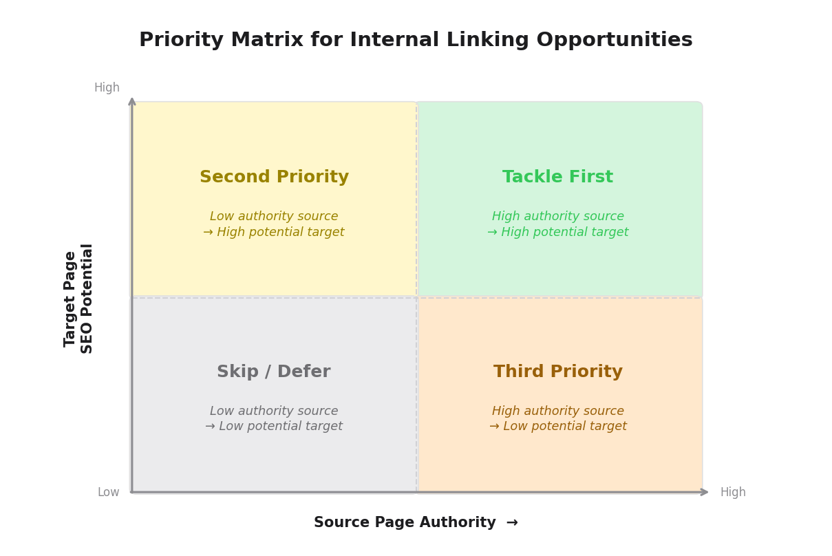
Think of your opportunities along two dimensions: the authority of the source page and the SEO potential of the target page. This creates four clear priority levels.
| High-Authority Source Page | Low-Authority Source Page | |
|---|---|---|
| Target has high SEO potential | Tackle First Highest impact; strong source boosts a page with proven keyword demand | Second Priority Good target, weaker source; still worth doing |
| Target has low SEO potential | Third Priority Strong source, weak target; limited ROI | Skip or defer; low ROI on both sides |
A high-authority source page is one that has the most external backlinks or the highest number of existing internal links. These pages have accumulated authority that they can pass along. A high-potential target page is one ranking in positions 5 through 20 for a keyword you care about, or an orphan page covering an important topic.
Quick Wins to Prioritise
If you want to start seeing results quickly, tackle these three categories first:
- Orphan pages on key topics. Any internal link is better than none. A single link from a relevant page can bring an orphan page into Google's crawl path immediately.
- Cluster pages missing their pillar link. If you use a pillar-cluster content model, check that every cluster article links back to its pillar page and vice versa. Gaps here are common and easy to fix.
- New content published in the last 90 days. Recently published pages often have zero internal links from older content. Go back to three to five relevant older posts and add a link to the new page.
Step 3: Choose Anchor Text That Works
This is where most retroactive linking goes wrong. The temptation is to use the same keyword-rich anchor text every time, or to default to vague phrases like "click here." Both approaches undermine your effort. For a full guide to choosing the right anchor text, see our dedicated article; here is the practical summary.
5x
More traffic on pages with at least one exact-match anchor text internal link, compared to pages without one
Source: Zyppy, "23 Million Internal Links Study" by Cyrus Shepard[6]
Cyrus Shepard's analysis of 23 million internal links across 1,800 websites found that pages with at least one exact-match anchor text internal link receive five times more traffic than pages without one.[6] That single data point makes anchor text selection critical. But it comes with a caveat: using the same exact-match anchor repeatedly from multiple source pages can look manipulative and dilutes the signal.
The principle is simple. Use one exact-match anchor from your best source page. Then vary the rest.
How to Vary Your Anchor Text
When linking to a single target page from multiple source pages, rotate through these anchor types:
- Exact match (once): Uses the target page's primary keyword. Powerful but use sparingly.
- Partial match: Includes part of the keyword within a longer natural phrase. For example, if the keyword is "internal link audit," the anchor might be "running a thorough internal link audit process."
- Descriptive natural: A phrase that describes what the reader will find, without using the exact keyword. "Our guide to checking your link structure" is natural and informative.
What to Avoid
Generic anchors like "click here," "read more," or "this article" give search engines no context about the target page. They are wasted opportunities. Similarly, linking an entire sentence or paragraph dilutes the keyword signal. Keep anchors to two to six words and ensure they describe the destination accurately.
A practical quality test: read the anchor text out of context. Could a reader guess what page it links to? If yes, it is good anchor text. If not, revise it.
For the full framework, including the 4S test (Specific, Sincere, Substantial, Succinct), see our deep guide on anchor text for internal links.
Step 4: Add the Links (Practical Execution)
With your target pages, source pages, and anchor text selected, it is time to place the links. This step is straightforward, but a few principles make the difference between links that work and links that sit idle.
Placing Links in Your CMS
Open the source page in your content editor. Find the most contextually relevant sentence or paragraph; the link should feel like a natural extension of the text, not an interruption.
Place links in the first third of the content where possible. Cyrus Shepard's research suggests that links positioned higher on the page receive more crawl weight and higher click probability, a principle he calls "link high and tight."[2]
Do not force a link where it does not belong. If you cannot find a natural placement, the pages may not be closely enough related. Move on to the next source page on your list.
Keep a tracking log as you work: source URL, target URL, anchor text, and date added. This log becomes invaluable for your quarterly audit.
Batch Processing for Larger Archives
If your content library has hundreds of pages, do not attempt to tackle it all at once. Work in batches of 10 to 20 pages per session.
A practical rhythm: every time you publish new content, immediately go back to three to five relevant older pages and add a link to the new piece. This takes five to ten minutes and prevents your new content from starting as an orphan.
For ongoing batch work, a simple spreadsheet works well:
| Source URL | Target URL | Anchor Text | Date Added |
|---|---|---|---|
| /blog/seo-basics-guide | /blog/internal-link-audit | "run a full internal link audit" | 2026-03-17 |
| /blog/content-strategy-tips | /blog/anchor-text-internal-links | "choosing the right anchor text" | 2026-03-17 |
| /blog/keyword-research-process | /blog/internal-linking-strategy | "complete internal linking strategy" | 2026-03-18 |
If you are managing a content library of any scale, a tool like Linki can automate the discovery phase and give you a prioritised queue to work through, so your time goes into placing links rather than hunting for them.
Step 5: Monitor the Impact
Retroactive internal linking is not a set-and-forget task. Monitoring tells you whether your links are being crawled, whether target pages are gaining authority, and where to focus your next round of updates.
What to Track in Google Search Console
After adding links, check these three reports over the following two to eight weeks:
- Internal Links report: Revisit Links > Internal Links after two to four weeks. Confirm that your new links are being counted. If they are not showing, the source page may not have been recrawled yet.
- Performance report: Filter by the target pages you updated. Watch for increases in impressions and clicks. Even small gains in average position (from 12 to 8, for example) signal that the links are working.
- URL Inspection tool: After adding links, request re-indexing of both the source and target pages. This prompts Google to recrawl them sooner, rather than waiting for the next scheduled crawl.
Timeline Expectations
How quickly will you see results? It depends on your site's size and authority, but here are reasonable benchmarks:
- Link discovery: Google can discover new internal links within 24 to 48 hours of the source page being recrawled.[7]
- Ranking movement: Pages sitting in positions 5 through 20 typically begin to shift within two to six weeks. The closer you are to page one already, the faster the effect.
- Traffic impact: The seoClarity case study showed meaningful gains within three weeks for a large enterprise site.[1] For smaller sites, allow four to eight weeks before drawing conclusions.
+24%
Organic traffic increase after one ecommerce brand built deeper internal links from category pages to buried subcategory pages
Source: seoClarity, "5 Internal Linking Case Studies"[1]
Common Mistakes to Avoid When Adding Internal Links to Existing Content
Retroactive linking is simple in concept but easy to execute poorly. These are the six most common mistakes, each with a straightforward fix.
- Linking to noindexed pages. If the target page has a
noindextag, you are sending PageRank into a dead end. Check the target's indexing status before linking. Fix: remove thenoindextag or choose a different target. - Using identical anchor text repeatedly. Linking to the same page from five different articles using the exact same anchor text looks manipulative. Fix: vary your anchors (exact match once, then partial match and descriptive phrases).
- Linking to redirect URLs. If you link to a URL that 301-redirects to another page, some authority is lost in the redirect. Fix: always link directly to the final canonical URL.
- Relying only on footer or sidebar links. Sitewide links from navigation, footers, and sidebars carry less weight than contextual in-body links. Fix: prioritise adding links within the body content of your articles.
- Adding too many links to one page. Each link on a page shares a portion of that page's authority. Adding 20 links to a single post dilutes the value of each one. Fix: aim for two to five contextual links per 1,000 words as a practical guideline.[8]
- Never checking back. Internal links break over time: pages get deleted, URLs change, redirects pile up. Fix: run a full internal link audit at least once per quarter to catch broken links, redirect chains, and new orphan pages.
Manual vs. Tool-Assisted Internal Linking: When to Upgrade
The workflow above works entirely with free tools for small content libraries. But there is a practical threshold where the manual approach stops scaling.
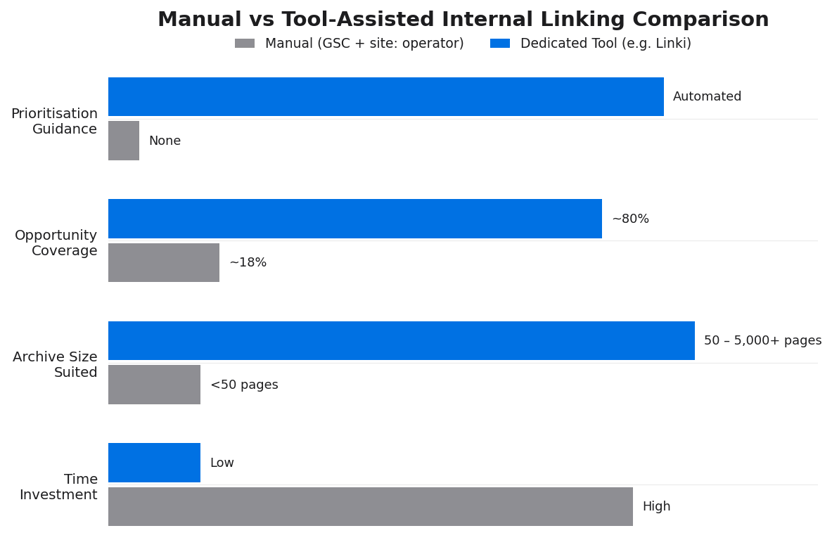
| Approach | Time Investment | Archive Size | Opportunity Coverage | Prioritisation |
|---|---|---|---|---|
Manual (GSC + site: operator) |
High | Under 50 pages | ~18% of opportunities[5] | DIY |
| Dedicated tool (e.g., Linki) | Low | 50 to 5,000+ pages | ~80% of opportunities[5] | Automated suggestions |
If your archive is small, the manual process described in Step 1 is perfectly adequate. Once you pass 50 pages, the cost of manually searching, cross-referencing, and tracking outweighs the cost of a dedicated tool. The choice is straightforward: spend your time placing links, not finding them.
For a full comparison of available tools, see our guide to the best internal link checker tools.
~20%
Traffic increase on both the source page and target page after internal links were added between them
Source: Cyrus Shepard / Clearscope Webinar[2]
Frequently Asked Questions
How do I find internal linking opportunities in existing content?
Start with Google Search Console's Internal Links report (Links > Internal Links) to identify pages with the fewest incoming links. Then use the site: search operator to find relevant source pages on your site that mention related topics. For archives with more than 50 pages, a dedicated internal linking tool will surface opportunities far more efficiently, catching approximately 80% of available links compared to roughly 18% with manual methods.[5]
How many internal links should I add to existing content?
A practical guideline is two to five contextual internal links per 1,000 words of content.[8] The emphasis should be on relevance and quality rather than hitting a specific number. Each link should genuinely help the reader find related information. If you are forcing a link into content where it does not fit naturally, that is a signal to choose a different source page. For more detail, see our guide on how many internal links to add per page.
Does adding internal links to old posts improve rankings?
Yes. The evidence is clear. One retail brand gained 150,000 annual organic visits in three weeks after adding internal links to existing product pages.[1] Cyrus Shepard's research shows that adding internal links lifts traffic by approximately 20% on both the target page and the source page.[2] Internal links help search engines discover, crawl, and rank your content; adding them retroactively is one of the highest-ROI tasks in SEO.
How long does it take for new internal links to affect rankings?
Google typically discovers new internal links within 24 to 48 hours of recrawling the source page.[7] You can accelerate this by using the URL Inspection tool in Google Search Console to request re-indexing. Ranking improvements usually begin to appear within two to six weeks for pages already sitting near page one (positions 5 to 20). For pages buried deeper or on newer sites, allow four to eight weeks.
What is the best anchor text for internal links in existing content?
Use descriptive, keyword-relevant phrases that naturally fit the surrounding sentence. The most effective approach is to use one exact-match anchor (the target page's primary keyword) from your strongest source page, then vary the anchor text on other source pages with partial-match and descriptive phrases. Avoid generic text like "click here" or "read more," which gives search engines no context about the target page. For the full framework, see our guide on anchor text for internal links.
Your Next Step
Retroactive internal linking is not complicated. It is five steps: audit, prioritise, choose anchors, add links, and monitor. The data shows it works, with case studies demonstrating traffic lifts of 20% to 150,000 additional annual visits.[1][2]
The only question is whether you want to do it manually or let a tool handle the heavy lifting. For a complete picture of how this fits into your broader strategy, read our complete internal linking strategy guide.
Sources
- seoClarity, "5 Internal Linking Case Studies of Increased Visibility and Opportunity"
- Cyrus Shepard / Clearscope, "Why Your Internal Links Aren't Actually Optimised"
- Search Engine Journal, "Google's John Mueller Says Internal Linking Is Super Critical for SEO"
- Rankability, "Internal Links as a Ranking Factor"
- Epic Slope Partners, "Best Internal Linking Tools for SEO in 2025"
- Zyppy / Cyrus Shepard, "23 Million Internal Links: SEO Case Study"
- WorldReach.io, "How Smart Internal Links Can Double Your Website Traffic"
- Exploding Topics, "Internal Linking: New Guide for 2025"